
Even the best diagnostic scanner is useless without the right software. That’s why the klavkarr comes with EOBD-Facile — our multi-brand automotive diagnostic software.
Diagnosing your car is only possible if you can access data from the ECU.
But that data must also be readable. EOBD-Facile helps you monitor your vehicle’s performance and detect faults before they become serious.
Whether you're preparing for an MOT or simply checking your car’s health, it’s the essential tool.
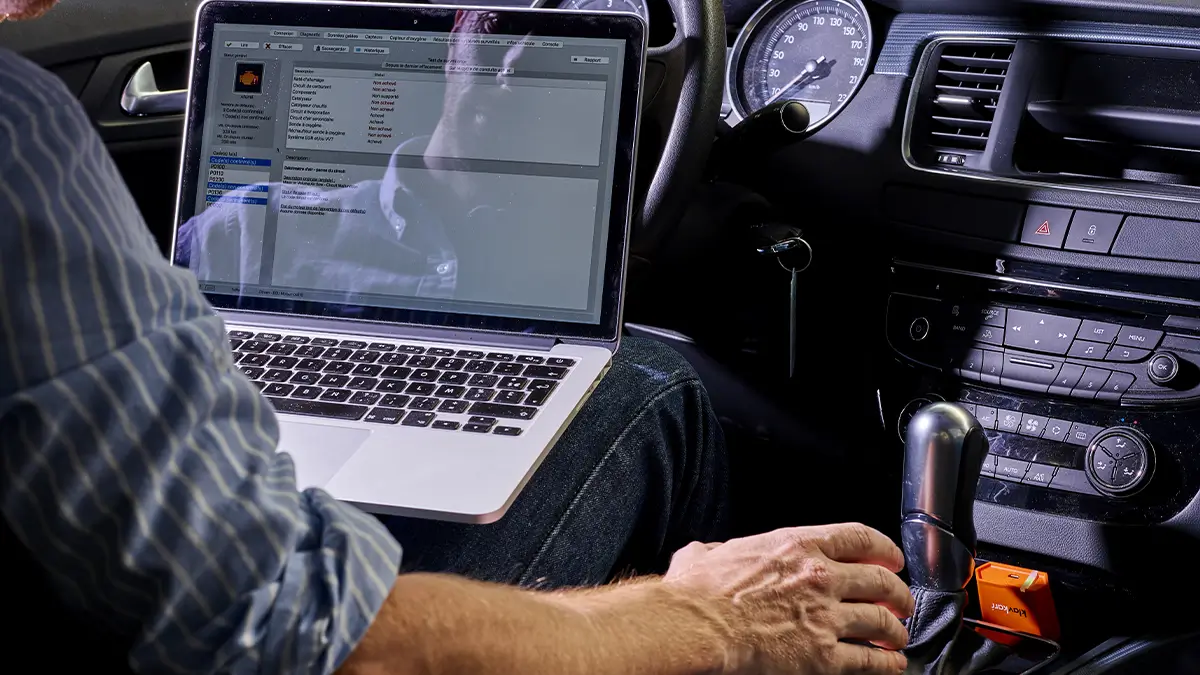
What does EOBD mean?
Just like many automotive technologies, diagnostics are governed by regulations. These define the shape of the connector as well as which data can or can’t be accessed — depending on the car brand and model.
OBD stands for On-Board Diagnostics, and must meet specific standards. These criteria vary by country, especially in relation to emissions control.
EOBD is the European version of OBD — it follows EU regulations while building on the same foundations.
The EOBD-Facile software
EOBD-Facile is the multi-brand car diagnostic software we developed at Outils OBD Facile.
Developed in France, it gives you access to your vehicle’s key data — and even allows you to clear the engine warning light on the dashboard.
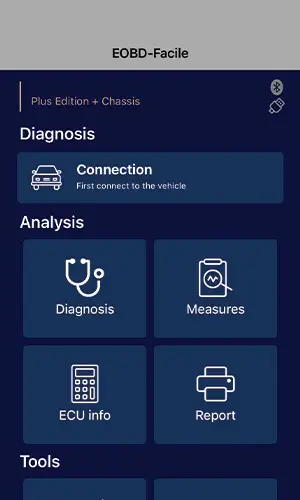
When launching the software for the first time, it won’t recognise your device yet — so you’ll need to introduce them!
Go to the “Register” tab and click “Activate your software”. Enter the email address linked to your licence. You’ll then receive a confirmation email.
The first launch might take a few extra seconds — don’t worry! It’s simply preparing for a full diagnostic session.
How to run a diagnostic with EOBD-Facile
Once connected, you’re ready to run a scan! But where do you start? And what exactly can you do with this OBD diagnostic software?

The difference between OBD and Manufacturer modes
When you connect to the software, you’ll be asked to choose between:
- OBD Mode
- Manufacturer Mode
The difference between these modes lies in the amount of data available.
As you might know, all manufacturers must comply with basic OBD parameters — regardless of brand.
That’s the data you’ll see in OBD mode. But manufacturers also add custom parameters — and Manufacturer mode gives you access to that additional information.
Graphs and recordings
Running diagnostics while stationary is useful, but some issues only appear while driving.
The software allows you to record live sensor data while the vehicle is in motion.
You’ll be able to analyse your car’s performance under real driving conditions. For example, you can identify abnormal fuel consumption or erratic acceleration. This data is accessed from the “Measurements” tab, then “Graph”.
You'll see two new tabs:
- “Value” — where you select the parameters to track
- “Graph” — where you view how they evolve over time
Now all that’s left to do is drive!
How to print a report
Even in the digital age, having a physical copy of your diagnostics can be useful. That’s why EOBD-Facile lets you print a diagnostic report after each session.
It’s especially helpful for professionals who need to keep track of multiple vehicle reports over time.

In conclusion
EOBD-Facile is a complete diagnostic software solution. It helps detect fault codes and also allows you to turn off the engine warning light.
Used with your klavkarr scanner, you can hit the road with peace of mind — knowing everything’s running smoothly.
Learn more
Share this article