
All our klavkarr automotive diagnostic scanners come bundled with our EOBD Facile software. It works with an automatic activation system that lets you connect on various devices.
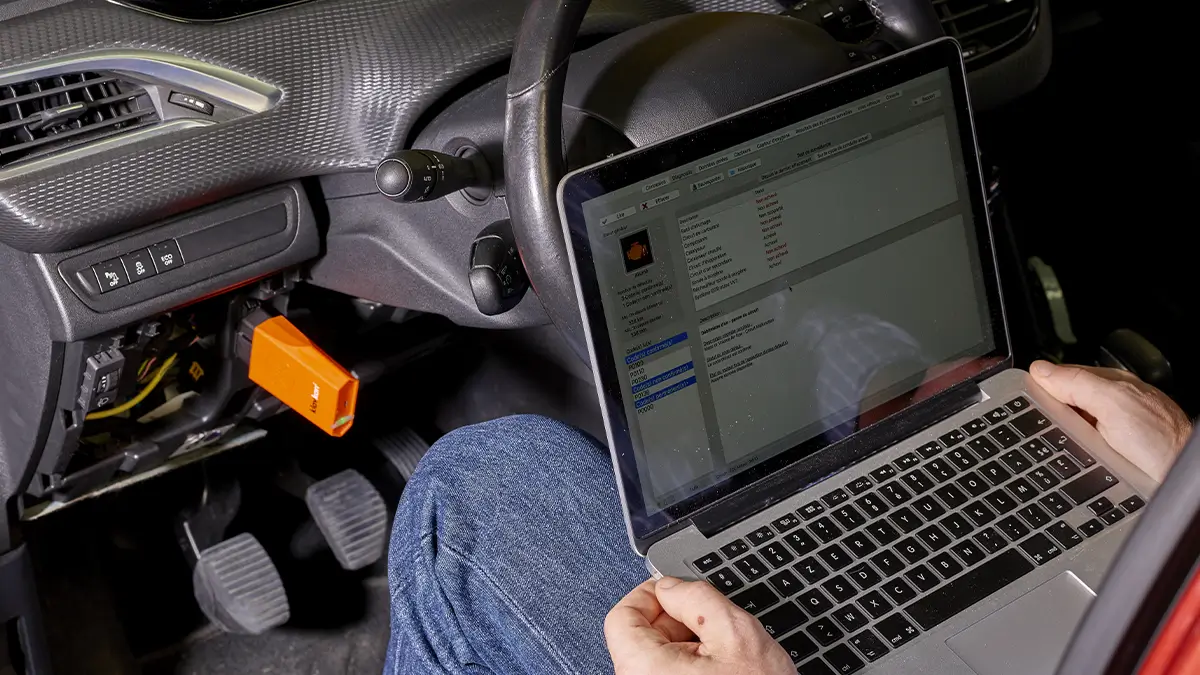
Klavkarr?? What’s that supposed to be?!
We’re based in Brittany and decided to name our diagnostic tools "klavkarr", which means "car key" in Breton. Our mission is to give users all the keys they need to run their own diagnostics—engine checks being the primary use for diagnostic tools.
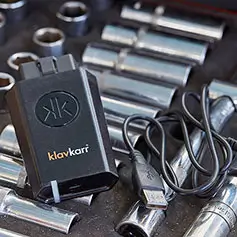
We developed a brand-new system that lets users run diagnostics from different platforms (PC / smartphone / tablet) without needing to buy anything extra. It's an all-in-one package, with each klavkarr device including the EOBD Facile software.
We offer two product ranges for different use cases:
- Classic models, in orange, designed for private users
- Expert models, in black, mainly for professionals
The software activates automatically when it connects to the klavkarr device, making it easy to run diagnostics anytime, anywhere.
Klavkarr is your key—literally—since it activates the software on any device, every time.
Unboxing your package
Inside the box, you’ll find:
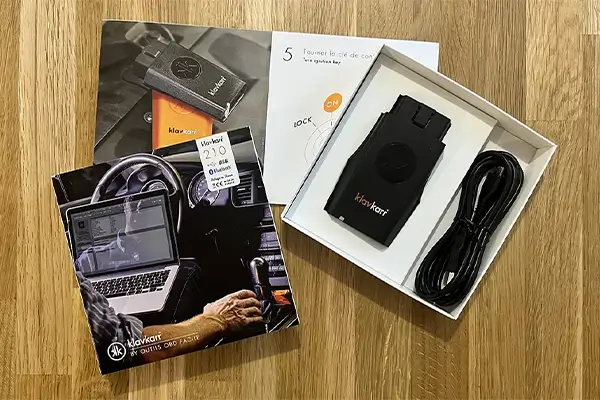
- A quick-start leaflet to guide your first setup
- A user manual with terms of use and full installation details
- A USB cable for wired connections on Windows or Mac
- Your klavkarr tool—this one is the Bluetooth-enabled 210 model that activates the "Plus" version of the software
How to run your first car diagnostic
We’ve created two step-by-step tutorials (for mobile and PC) to guide you through your first use of klavkarr with EOBD Facile. Here are the mobile steps:
Mobile
1. Download EOBD Facile
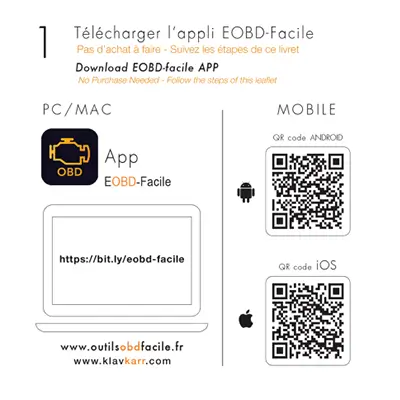
► On Android or iPhone/iPad
Scan the QR code on the leaflet to download the app directly from Google Play or the App Store. You’ll need a QR reader app for this.
You can also search "EOBD Facile" directly in your store to find the app.
Then proceed to install it.
2. Locate your car's OBD port
Next, you need to find the OBD port in your vehicle. If you’re unsure, use our free community app—it includes user-uploaded photos for most vehicles.
Just like with EOBD Facile, scan the QR code or search "Where is my OBD2 port? Find it!" in your store.
App links:
The same database is available in the PC version of the software or on our info site here: ► OBD II port locations
For more help, check out this explainer video:
3. Plug in your klavkarr and switch on the ignition
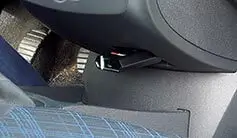
Once you've found the port, connect your klavkarr. The LED will blink to indicate it's ready to pair.
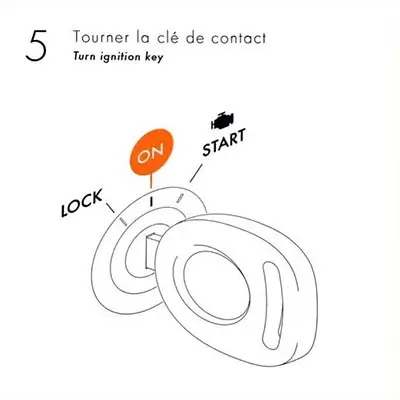
Make sure to turn the key to "On"—you don’t need to start the engine, but the ignition must be on for the software to connect.
4. Launch EOBD Facile and pair via Bluetooth
Open the app, choose your connection method, then select the klavkarr after scanning for available devices. Pairing may take a bit longer the first time.
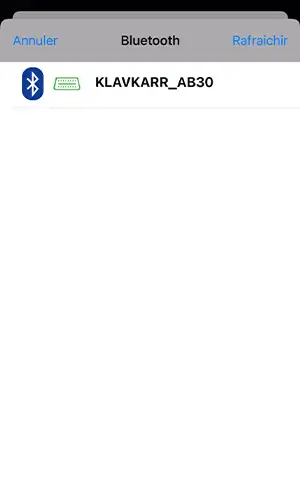
Once detected, your klavkarr will show up in the connected devices list. Click "Next" and choose your vehicle brand and the ECU you want to scan.
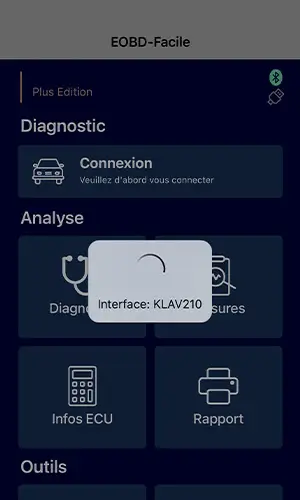
5. klavkarr automatically activates EOBD Facile
Once paired, EOBD Facile will automatically activate to the appropriate level—for instance, the "Plus" tier for klavkarr 210.
The LED will turn solid green, confirming the device is connected.
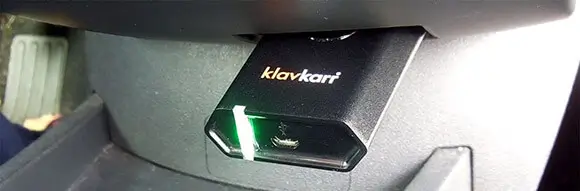
This system is especially convenient if you change devices, as no extra purchases are required. Your klavkarr is your licence key!
Time for your first diagnostic!
You're all set—just go to the "Diagnostic" menu in the app and check for fault codes.
Which klavkarr should you choose?
That depends on how you plan to use it.
The Expert 200 and 210 models are for professionals, offering extra features like report printing, data logging, VIN decoding, and advanced sensor value checks.
For personal use, the Classic 100 and 110 models are perfect for reading and clearing codes (over 15,000 supported).
The 110 and 210 both support Bluetooth, so you can use them wirelessly with mobile devices that don’t have USB ports.
There’s no best option—just the one that best suits your needs.
More articles you might like
Share this article