
Your klavkarr diagnostic tool is connected, but your iPhone does not recognise it? Before starting an OBD Bluetooth diagnostic, ensure the connection between the tool and your iPhone is properly established.

Understanding how Bluetooth works on iPhone
klavkarr diagnostic tools are designed to communicate with the EOBD-Facile app via a Bluetooth connection. However, on iPhone, their use relies on an important technical feature: the exclusive use of Bluetooth Low Energy (BLE).
This means that the connection between the tool and the app does not work like with a standard Bluetooth accessory, such as headphones or a speaker. On iPhone, it is not necessary to manually pair the device in the phone's Bluetooth settings.
Instead, the tool is detected directly from the EOBD-Facile app. If the user tries to search for or manually pair the device from the iPhone settings, they may mistakenly think the tool is not detected or is malfunctioning because it will not be found.
To establish the connection correctly, it is essential to open the EOBD-Facile app and follow the intended connection procedure. The way Bluetooth works on iPhone is specific, and this feature may explain certain issues during first-time use.
How to resolve Bluetooth connection issues on iPhone
Allow Bluetooth usage on iPhone
During the first use, it is crucial to accept the app's permission to use Bluetooth.
App installation:
- Scan the QR code in the quick start guide.
- Download and install the EOBD-Facile app from Google Play.
- Open the app for the first time.
Setting up the hardware:
- Turn on the vehicle ignition.
- Connect the klavkarr 210 to the OBD port and check that the LED is blinking.
Connecting through the app:
- Launch EOBD-Facile.
- When it opens, a message appears: tick "Do not show again" and click "Close".
- Select the device "klavkarr 110", "klavkarr 210", or "klavkarr 310".
- Click "Connect".
- Accept the terms and conditions.
- Allow Bluetooth.
I did not accept Bluetooth:
- Exit the EOBD-Facile app and go to the phone's "Settings".
- Tap on the EOBD-Facile app, either by going to "Apps" or scrolling through the menu until you reach the phone's apps.
- Enable Bluetooth (it should turn green).
- Return to the EOBD-Facile app.
- Tap "Connect".
- Your klavkarr is now detected; tap it to connect.
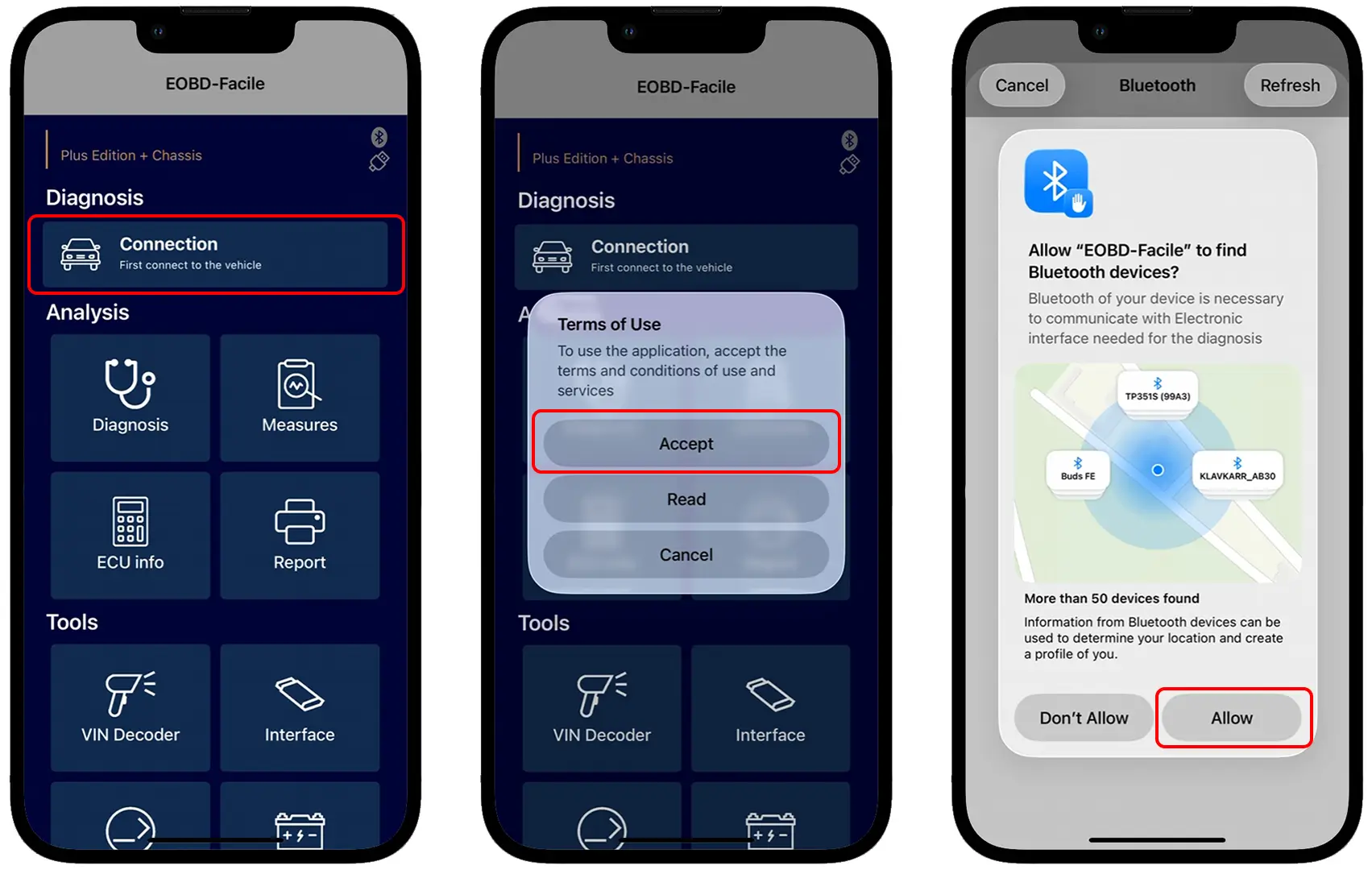
Connecting the klavkarr directly via the EOBD-Facile app
If you try to pair your klavkarr beforehand from your iPhone's Bluetooth settings, the connection will not work.
It is essential to let the EOBD-Facile app fully manage the klavkarr connection.
App installation:
- Scan the QR code in the quick start guide.
- Download and install the EOBD-Facile app from Google Play.
- Open the app for the first time.
Setting up the hardware:
- Turn on the vehicle ignition.
- Connect the klavkarr 210 to the OBD port and check that the LED is blinking.
Connecting through the app:
- Launch EOBD-Facile.
- When it opens, a message appears: tick "Do not show again" and click "Close".
- Select the device "klavkarr 110", "klavkarr 210", or "klavkarr 310".
- Click "Connect".
- Accept the terms and conditions.
- Allow Bluetooth.
- Choose your klavkarr.

The app is no longer authorised to use Bluetooth
On iPhone, the EOBD-Facile app must have permission to use Bluetooth to detect and communicate with your klavkarr diagnostic tool. If this permission has been disabled or not granted during the first launch, the connection between the app and the interface cannot be established.
This issue can prevent the tool from being detected, even if it is properly connected and functioning normally.
Here are the steps to follow to reset detection after changing the model:
Connecting through the app:
- Launch EOBD-Facile.
- When it opens, a message appears: "This app is not authorised to use Bluetooth Low Energy".
iPhone "Settings" menu:
- Scroll through the menu to either Apps and the EOBD-Facile app, or directly to the app depending on your iPhone version.
- Enable Bluetooth.
Returning to the app:
- Launch EOBD-Facile.
- Tap "Connect".
- Select your klavkarr.
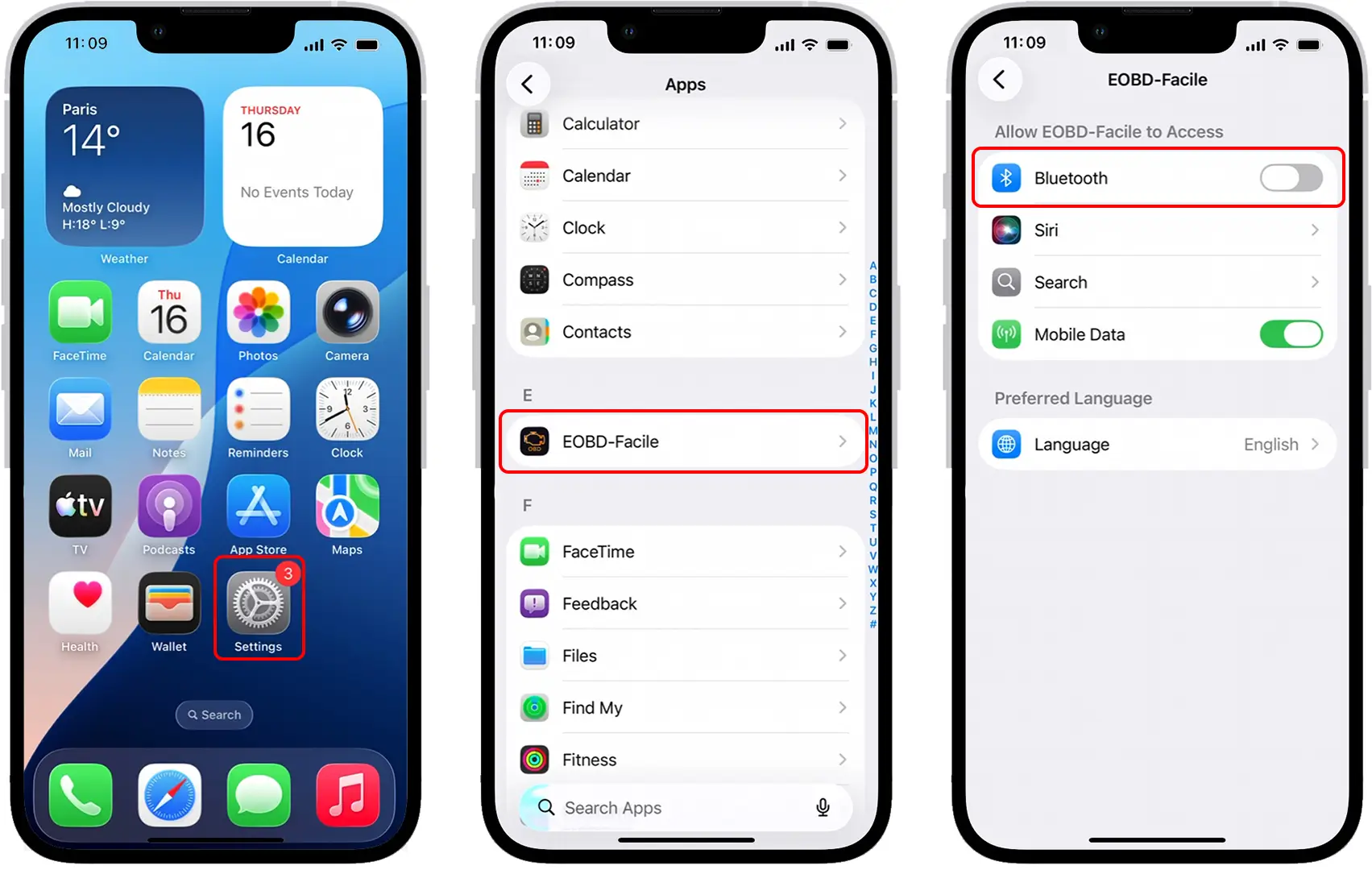
I switched from an ELM327 to a klavkarr
When you first connected to the EOBD-Facile app, you used an ELM327 device. You selected this device from the list provided, and this choice was saved by the app.
As a result, the interface currently configured in the app still corresponds to an ELM327, not your klavkarr diagnostic tool. This may explain the difficulties encountered when connecting with the klavkarr.
If you have changed devices, it is necessary to modify the interface model selected in the app to choose your klavkarr.
Setting up the hardware:
- Turn on the vehicle ignition.
- Connect the klavkarr 210 to the OBD port and check that the LED is blinking.
Connecting through the app:
- Launch EOBD-Facile.
- Scroll through the home screen menu to "Settings".
- Tap "Interface".
- Choose "klavkarr 110/210/310 Bluetooth".
- Go back.
- Tap "Connect" again.
- Select your klavkarr.
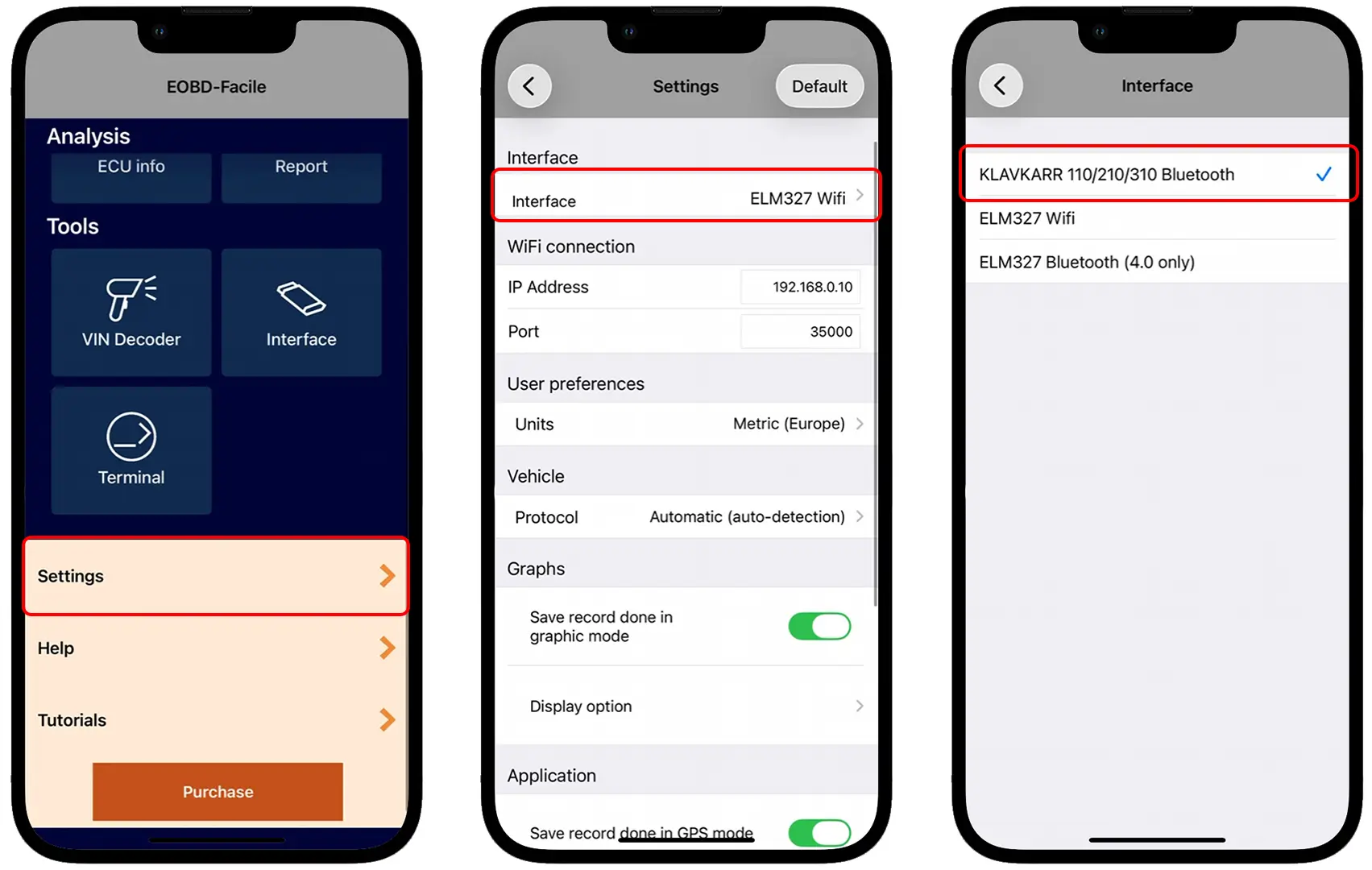
Tips in case of total detection failure
If, despite the previous steps, no klavkarr is detected:
- Check that your klavkarr's LED is blinking.
- Ensure the vehicle ignition is on.
- Test the device on another vehicle.
- Try the app on another iPhone smartphone.
Learn more
Share this article