
You have connected your klavkarr diagnostic tool, but your Android smartphone does not detect it? Before starting an OBD diagnostic via Bluetooth, it is essential to correctly establish the connection between the klavkarr tool and your Android phone.
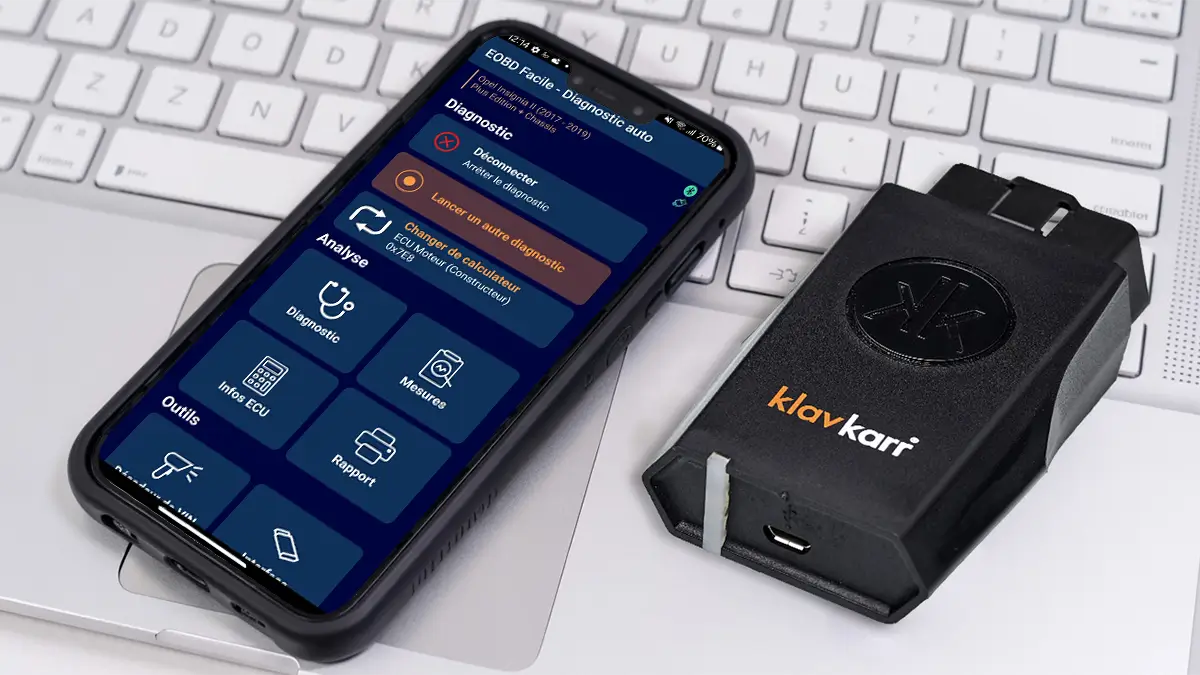
Understanding Bluetooth functionality differences between models
The klavkarr 210 and 310 diagnostic tools are designed to communicate with the EOBD-Facile app via a Bluetooth connection. However, their behaviour differs depending on the model, which may lead to connection difficulties, especially on Android smartphones.
The klavkarr 210 uses hybrid Bluetooth technology, combining classic Bluetooth and Bluetooth Low Energy (BLE). When used for the first time, it is often manually paired by the user.
In contrast, the klavkarr 310 relies solely on Bluetooth Low Energy, which does not require or support manual pairing.
This technological difference can cause conflicts when switching from the 210 to the 310, particularly if the Bluetooth pairing of the klavkarr 210 is still registered on the smartphone. In such cases, the EOBD-Facile app cannot detect the 310.
It is therefore essential to follow the specific procedures for each model to establish a connection between the device and the app.
How to resolve Bluetooth connection issues
With the klavkarr 210
The klavkarr 210 uses hybrid Bluetooth technology, combining classic Bluetooth and Bluetooth Low Energy (BLE).
During the first use, pairing is automatically initiated by the EOBD-Facile app, provided the user grants Bluetooth access.
Here are the steps to connect a klavkarr 210:
App installation:
- Scan the QR code in the start-up guide.
- Download and install the EOBD-Facile app from Google Play.
- Open the app for the first time.
Setting up the hardware:
- Turn on the vehicle's ignition.
- Plug the klavkarr 210 into the OBD port and check that the LED is blinking.
Connecting via the app:
- Launch EOBD-Facile.
- Upon opening, a message will appear: tick "Do not show again" and click "Close".
- Select the device "klavkarr 210".
- Click "Connect", accept the terms and conditions, and grant Bluetooth access.
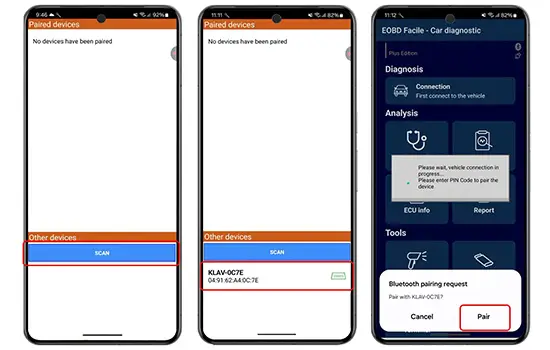
- If no device appears, click "Scan".
- Once the klavkarr is detected, tap on it.
- Accept the pairing request by clicking "Pair".
- The connection is now active, and you can start the diagnostic.
With the klavkarr 310
The klavkarr 310 uses Bluetooth Low Energy (BLE) technology. Unlike classic Bluetooth, no manual pairing via your smartphone settings is required.
On the contrary, any prior pairing attempt may block the device's detection by the app.
It is therefore crucial to let the EOBD-Facile app fully manage the connection.
Here are the steps to connect a klavkarr 310:
Preliminary check:
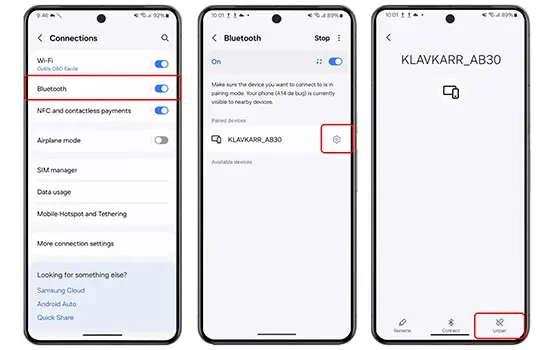
If you have already attempted a manual connection via Bluetooth settings, start by removing any existing pairing:
- Open "Settings"; "Connections"; "Bluetooth".
- Find the klavkarr in the list and click on the settings icon.
- Select "Unpair".
Setting up the hardware:
- Turn on the vehicle's ignition.
- Plug the klavkarr 310 into the vehicle's OBD port and check that the LED is blinking.
Connecting via the app:
- Launch EOBD-Facile.
- Close the warning message.
- Select "klavkarr 310".
- Click "Connect" and accept the terms and conditions, then grant Bluetooth access.
- The app will automatically detect the klavkarr 310 in the "Associated Devices" section.
- Click on the detected device to establish the connection.
No action in the phone's Bluetooth settings is required for this model.
Switching from a klavkarr 210 to a klavkarr 310
The klavkarr 210 uses hybrid Bluetooth technology, combining classic Bluetooth and Bluetooth Low Energy (BLE). During the first use, pairing is automatically performed by the EOBD-Facile app, provided the user has granted Bluetooth access. Once the connection is established, the klavkarr 210 is visible in the phone's Bluetooth device list.
In contrast, the klavkarr 310 relies solely on BLE and requires no manual pairing. If the previous pairing with the klavkarr 210 is not removed, the app may encounter difficulties detecting the new device correctly.
Here are the steps to reset detection after switching models:
Removing the klavkarr 210
- Remove the klavkarr 210 from the phone's Bluetooth settings.
- Find your klavkarr 210 in the list of registered devices, tap the gear icon, and select "Unpair".
Setting up the hardware:
- Turn on the vehicle's ignition.
- Plug the klavkarr 310 into the vehicle's OBD port and check that the LED is blinking.
App configuration for the 310:
- Launch EOBD-Facile.
- Tap "Settings" then "Interface".
- Select "KLAV310 Bluetooth low energy".
Connecting via the app:
- Return to the connection screen by tapping "Connect".
- The klavkarr 310 should now appear in the list of associated devices.
- Select it to establish the connection.
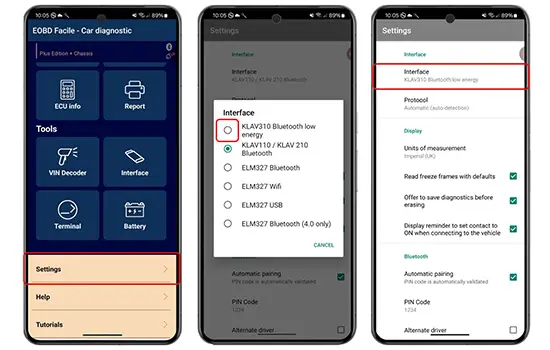
This procedure ensures a proper switch between models, avoiding interference between the different Bluetooth connection types.
Tips in case of no detection
If, despite the previous steps, no klavkarr is detected:
- Check that the LED on your klavkarr is blinking.
- Ensure the vehicle's ignition is on.
- Test the device on another vehicle.
- Try the app on another Android smartphone.
Share this article